


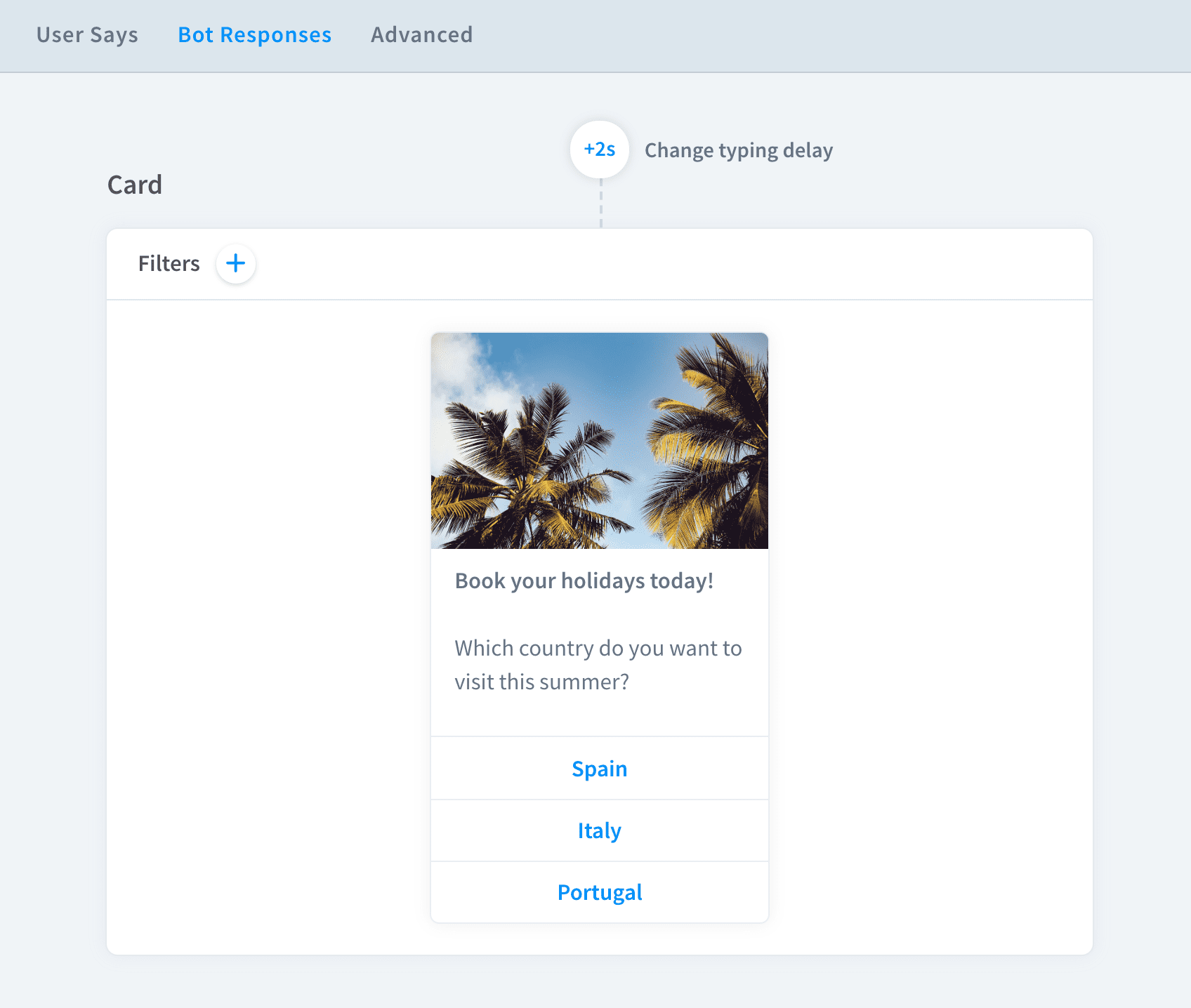
Card response allows you to create a single element, with an image, title, and description. You can also add buttons to enable an additional action.
Card elements
- Image URL - add the URL of an image that you want to be shown in this response
- Title - give your card a name
- Description - add a short description (max
80characters) - Buttons - add max
5buttons and assign each of them a type and actions that will be triggered when the button is clicked.

Add actions to buttons and direct your clients to the right place. Read more about button types here.
Add actions to buttons and direct your clients to the right place. Read more about button types here.
How to create a card responses
- Find
Cardresponse inBot responses.

- Paste the image URL in the URL section. (If you want to create a card without the graphic, use button response.

- Add a title and a description. Bot fields allow max
80characters.

- You can also add
Buttonsto the card. - Create a button, give it a name and assign an action. Choose from four button types.

- You can add maximum three buttons.
- Click on the
savebutton. Your card has been created!
Card and integrations
Card response works with Slack and Chat Widget integrations. To see the full compatibility table, go here.