

Train your chatbot to give users a better experience.

The AI Training
The AI Training module is located at the top left of your screen, in the main view of your chatbot. You can use it to train your chatbot. This section will be empty if you are just starting with the bot training.
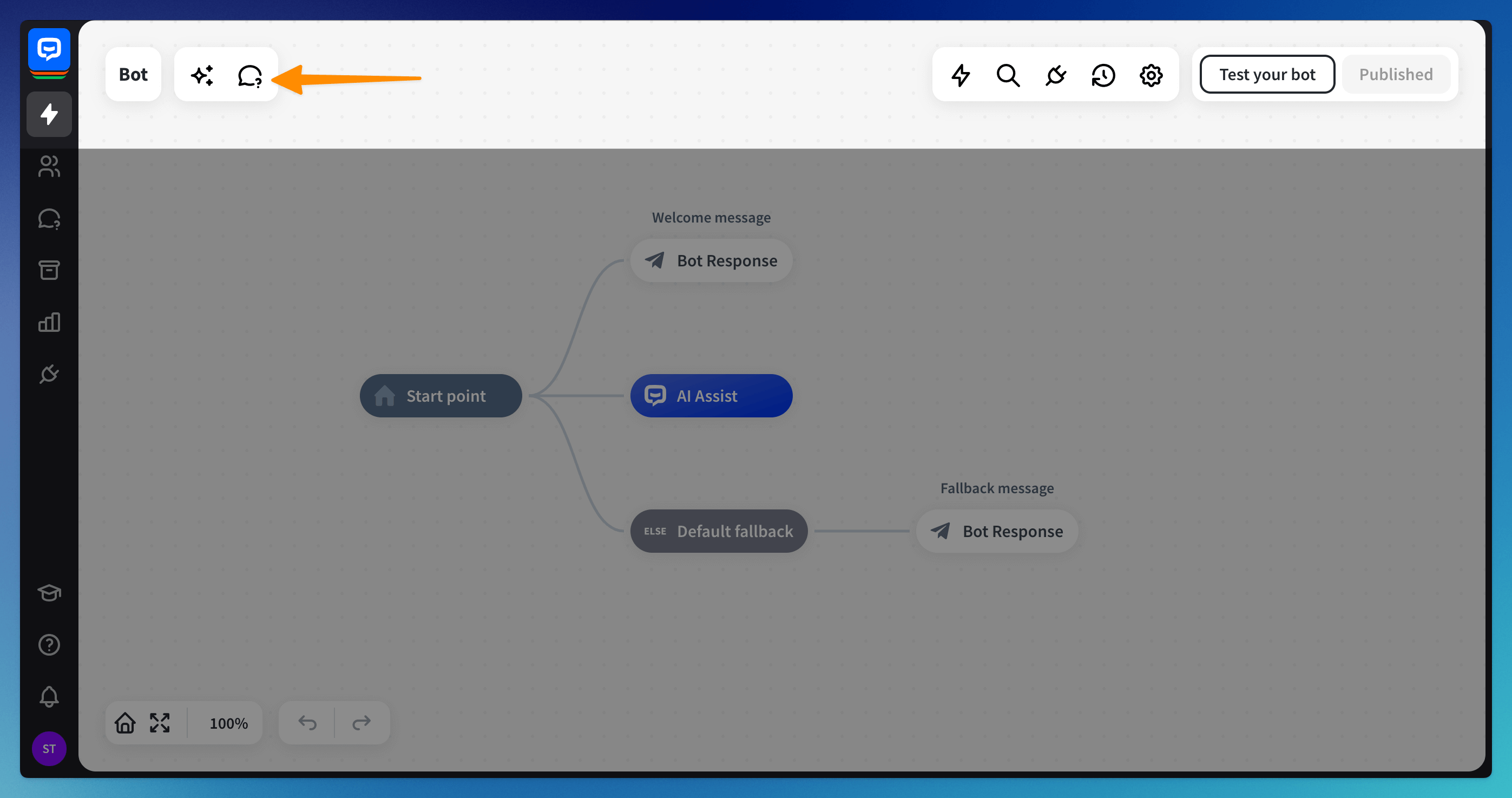
The AI Training section collects all messages from your customers along with the answers provided by the bot. You can find there the General and custom categories and sections added by default:
- Unmatched
- Answered by AI
- Spam
The All categories view
This view collects all phrases added to any category. You can add phrases manually anytime by clicking the + Add phrase button.
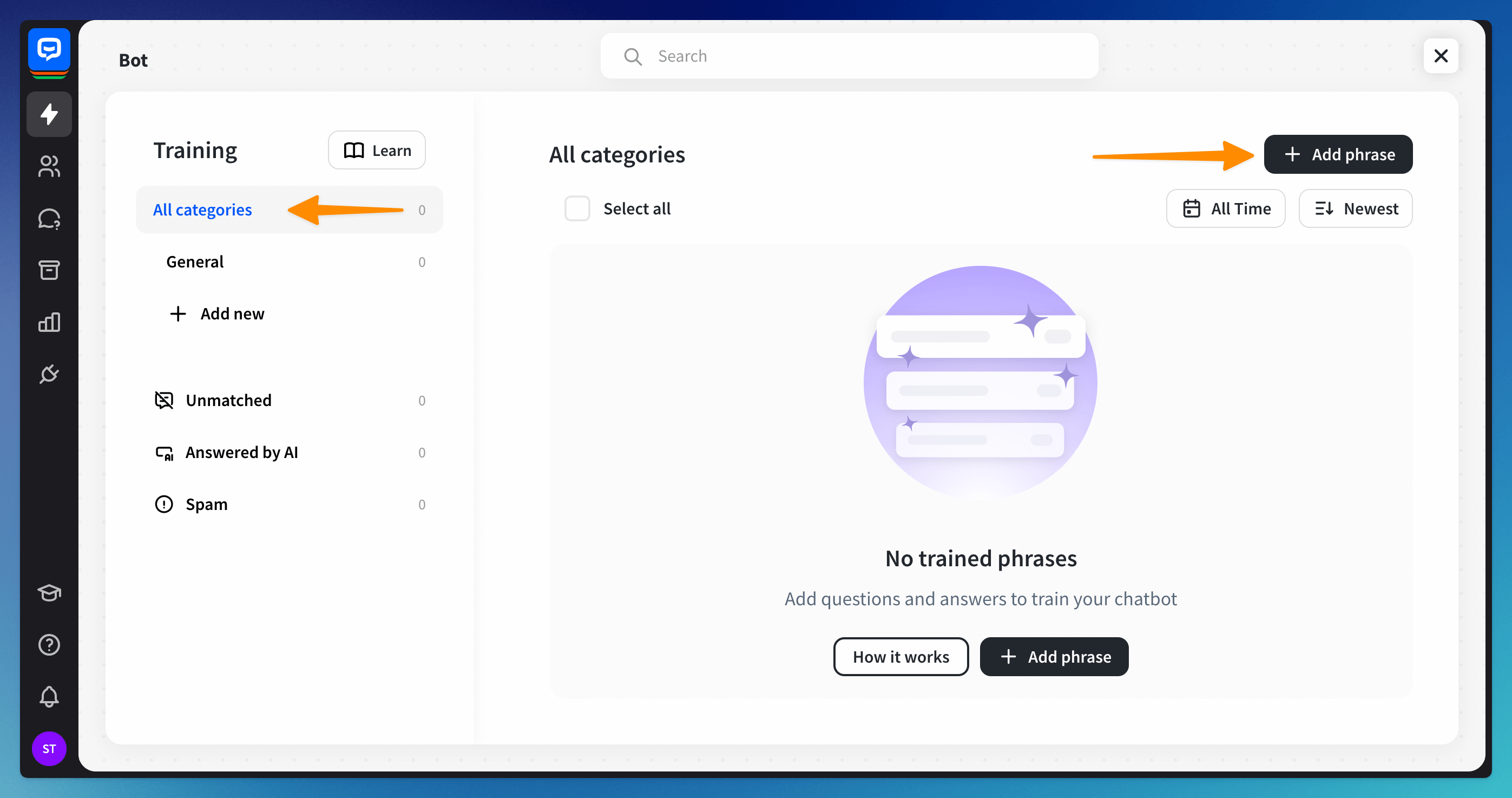
The General category shows all questions with answers that do not have their category. You can use it for all basic questions and answers and create new categories for more specific questions.
You can select the phrases in bulk (1), filter them and sort by newest or oldest (2), change their category, add them to spam, or delete them (3).
The Unmatched section
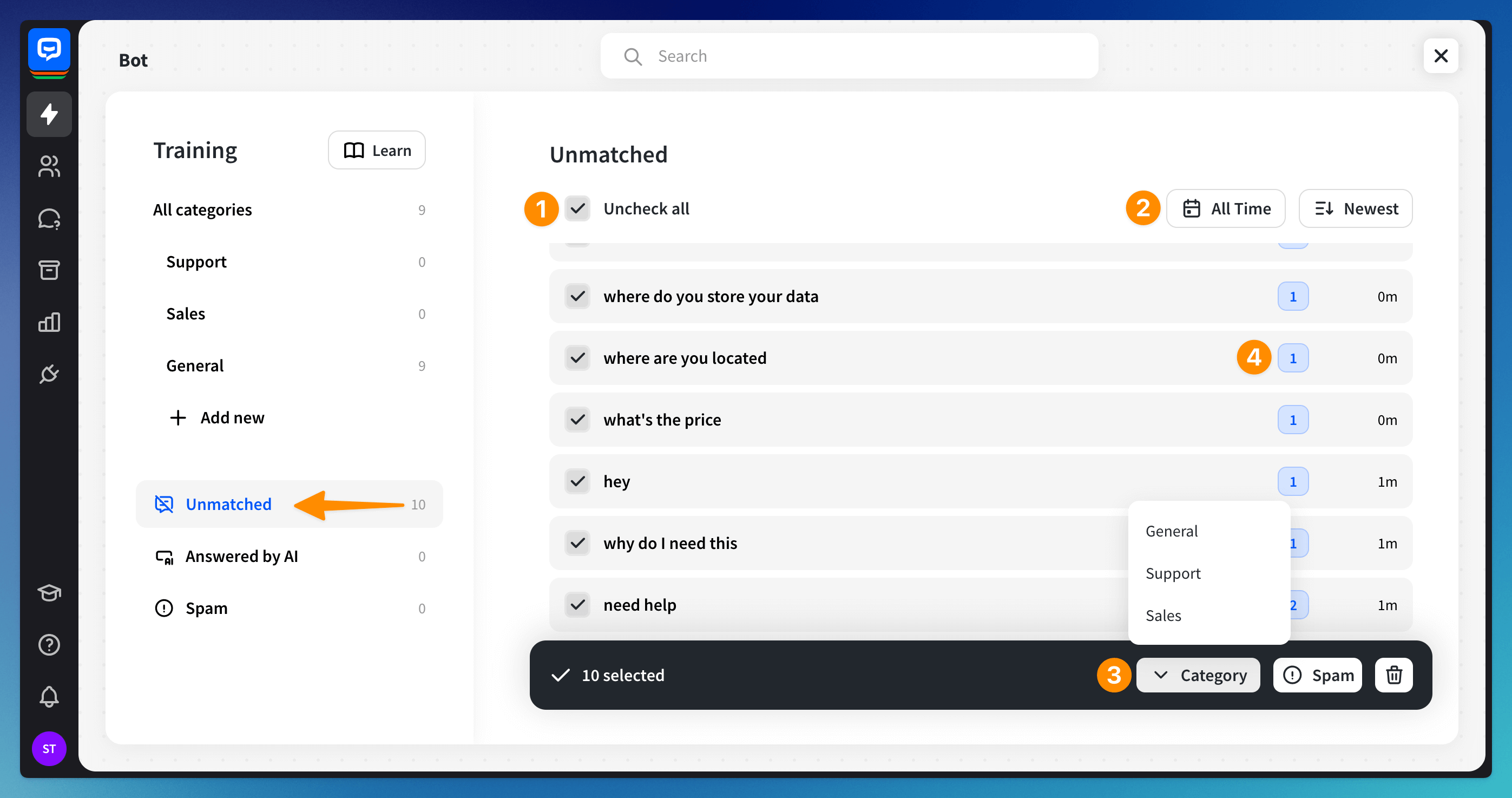
In this section, you will find all the user messages your ChatBot.com couldn’t answer. This allows you to review and train all the unmatched queries that have been responded to with the fallback interaction.
You can easily manage the phrases by selecting (1), filtering and sorting (2), adding to categories in bulk, adding to spam, or deleting (3). You can also see how many times the query occurred in chats (4).
The Answered by AI section
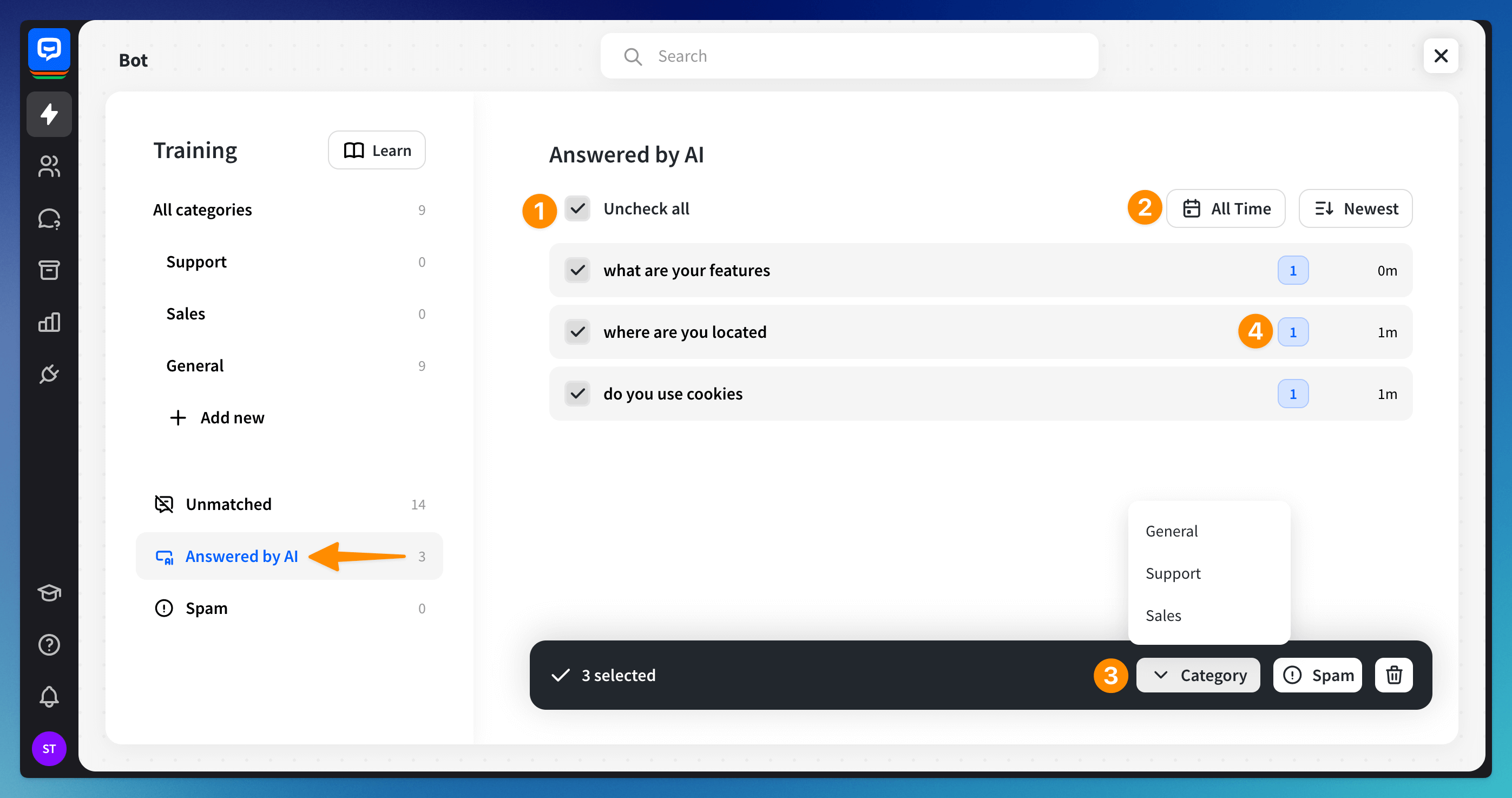
In this section, you can view and edit answers generated by AI Assist.
To use this section effectively, view and edit answers by improving responses. Select questions in bulk (1), filter and sort them (2), add them to categories, spam, or delete them (3). You can also see how many times each question was asked (4). These steps can refine the AI’s responses and enhance its performance over time.
To fine-tune AI-generated responses, browse through them and click on a specific entry to edit it. You can edit the bot’s answer (1) to improve its accuracy and add the edited entry to a selected category (2) in the Training section.
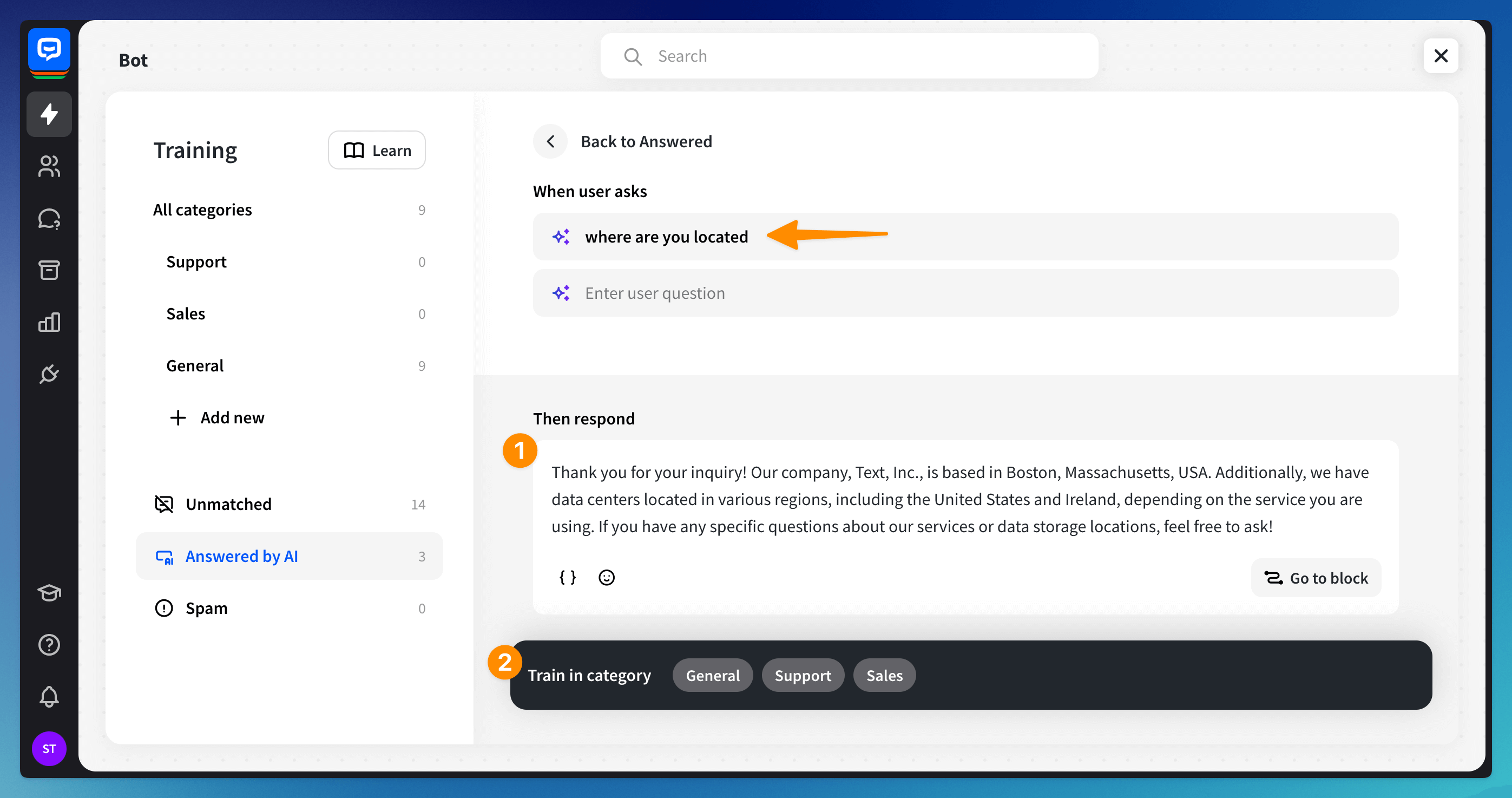
This ensures your AI model uses these responses in their exact form in the future and helps organize them effectively.
The Spam section
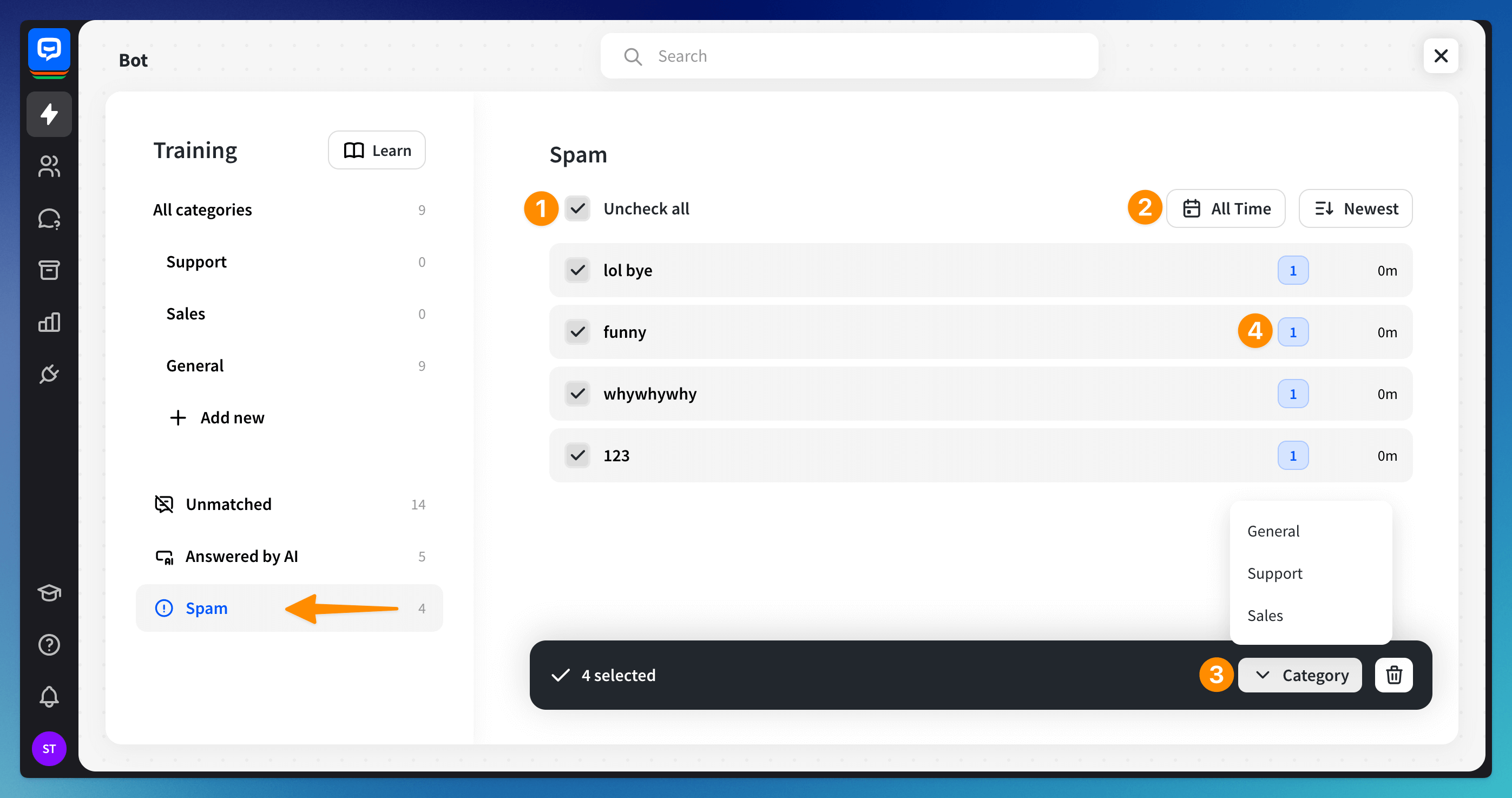
This section collects all the queries visitors might send that are unrelated to your business. When added to the Spam section, the query will never reappear in the Unmatched section, and the bot will respond with a Fallback message.
You can select the phrases in bulk (1), filter them and sort by newest or oldest (2), change their category, or delete them (3). You can also see how many times the phrases occurred in the chats (4).
Managing user queries
In a single-question view, you see a question and provide an answer. You can answer the questions individually or use multiple questions for a single answer (1). You can add them to a category directly from here (2) and use the Go to block function (3).
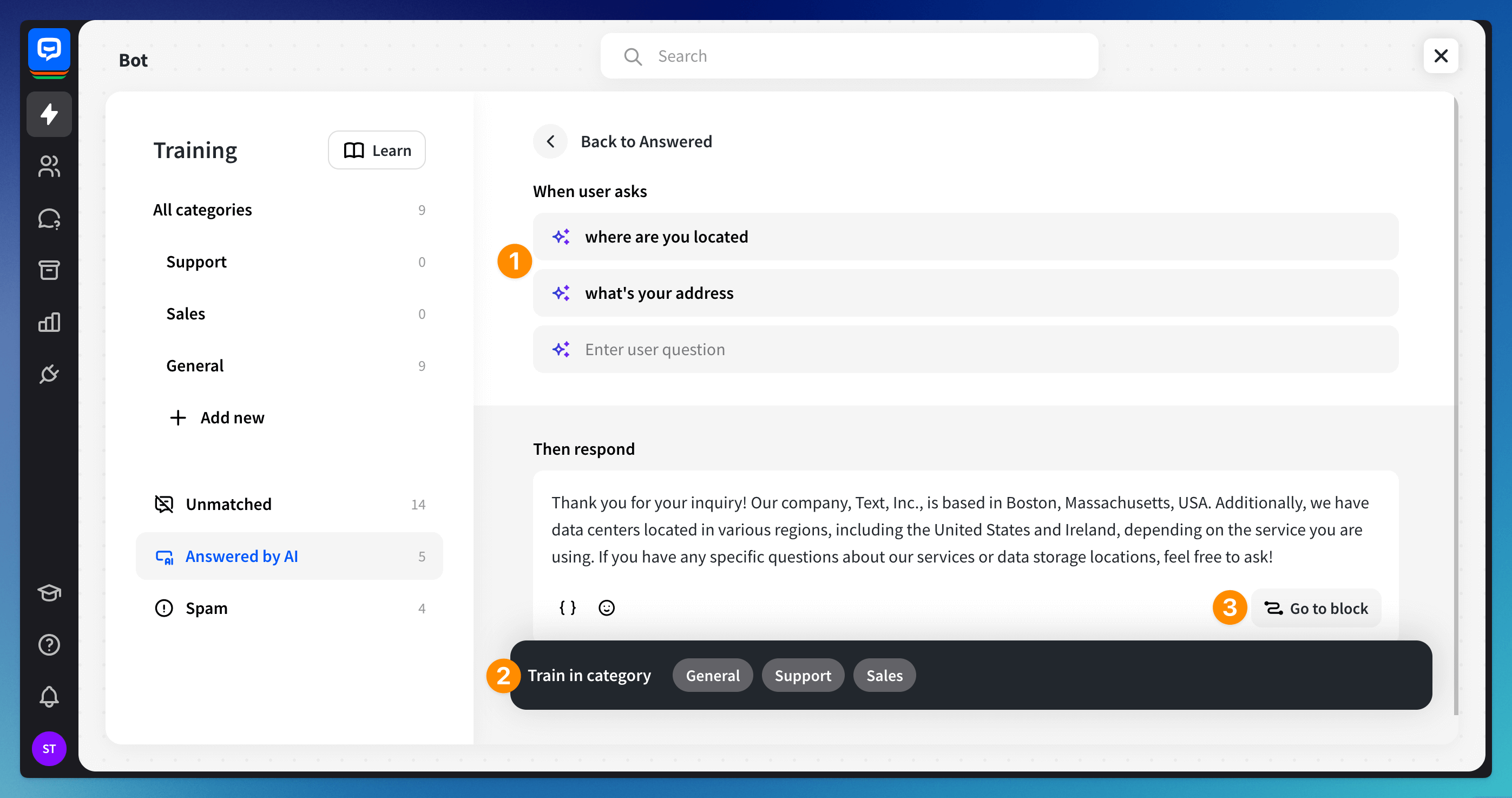
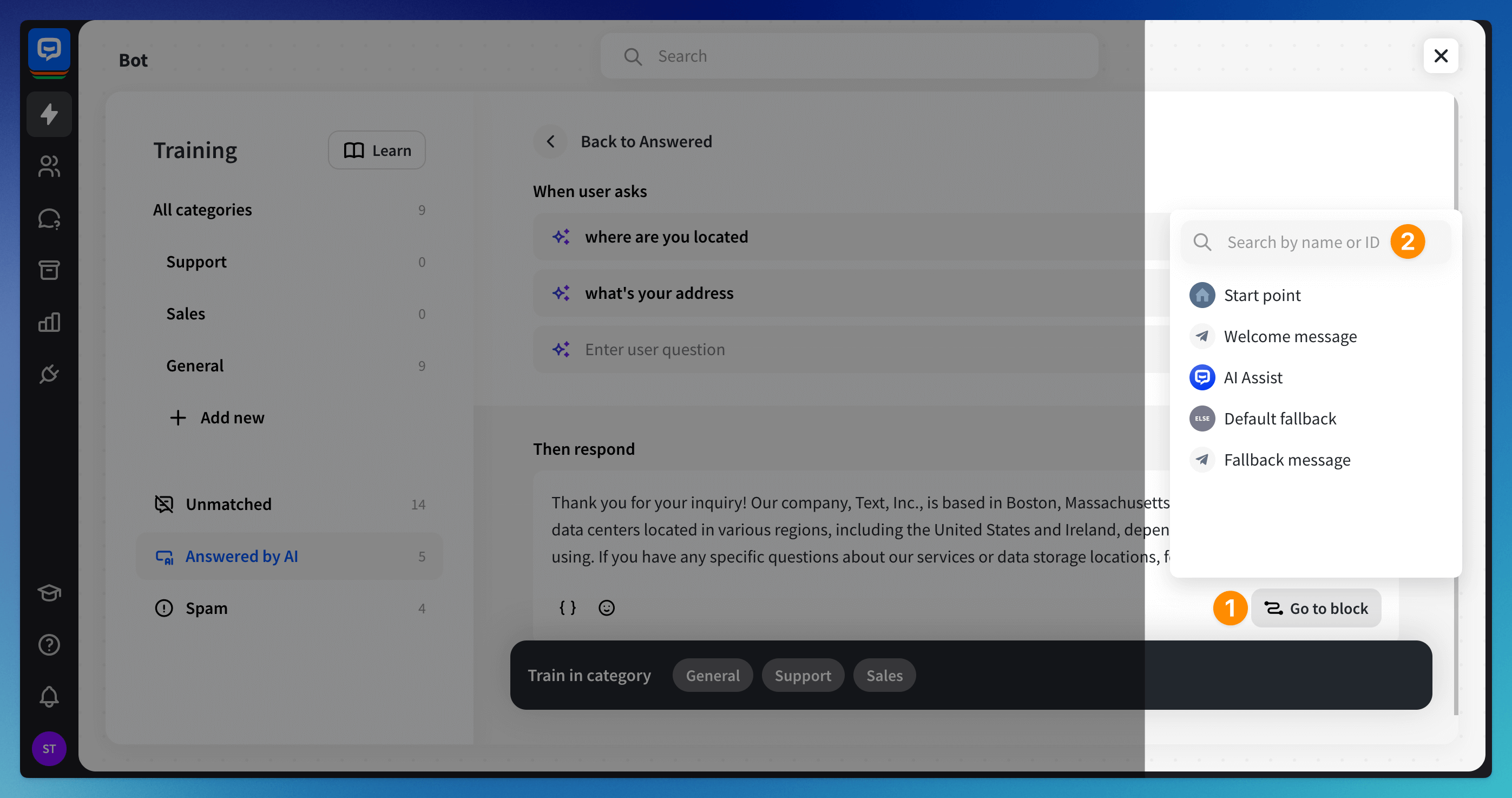
The Go to block function allows you to redirect the chat based on the user’s query. You can choose the block from the list or use the search tool to find the correct block. After the user sends the question, the bot responds with a provided answer and redirects the conversation to the selected block.

Remember that the more you train your chatbot, the better it gets.
Read more: